
WORKSHOP - REGULAR EXPRESSIONS for MERE MORTALS
Definition: Regular Expression
A regular expression is a coded string of characters that allows you to find and replace patterns in a text document.
If you have text—a list of items, say, or some other text document—regular expressions can be used to interact with that text.
1. Install a Text Editor
We're working with bare text--no fancy formatting, because things are complicated enough. You can figure out how you want to format things later.
Working with text, we need to use a "text editor."
Download and install VS Code for your Mac or PC.
Now we can create text-based documents quickly and easily. Fantastic for taking notes at meetings, etc.
2. Configure VS Code
Text editors are so enormously powerful that there are many, many options that can be configured. We need to change only a couple of the default options, however:
- Turn word wrap on: Code > Preferences > Extensions. Search for "Word Wrap", turn it on.
- Install an extension that will allow us to sort lines: Code > Preferences > Extensions. Search for "Sort Lines", and install the package by Daniel Imms.
3. Using a text editor
A text editor works just like Word or Google Docs: you can type or paste text into it, and you can copy stuff in it or save it in files.
Interesting point: This particular text editor doesn't allow you to print, but that's okay—we're just using it as a tool for doing other things. If you really need to print something, you can copy-paste it into Notepad (PC), TextEdit (Mac), or Word or Google Docs and print it from there.
So that we have something to work with, select-copy-paste this text selection and paste it into a New document in VS Code. Or, download the directory.txt file. (I copied this from Poly's Administrative webpage.)
4. Regular Expressions
Now things get fun!
"Regular expressions" are ways of describing patterns of text using symbolic identifiers.
Setting up regular expression mode
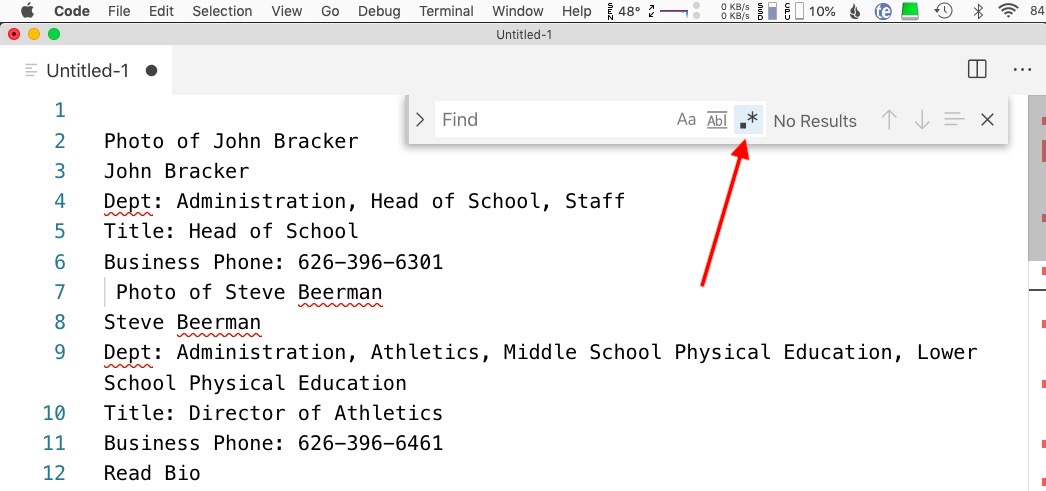
Activate the "Find menu", then activate "regular expression mode" by clicking on the .* button.
4.a. Simple Find
You can still perform simple find commands.
Simple Find
- Activate the Find feature by pressing command-f (Mac) or ctrl-f (PC).
- Type
Johninto the search field of the Find dropdown to see occurrences of that text highlighted.
4.b. Find using regular expressions
The special character ^ is used to find the beginning of a line.
Find only occurrences of "John" at the beginning of a line
Type ^John into the search field of the Find dropdown to see occurrences of that text highlighted.
Another special character is the $, which indicates the end of a line.
"er" in the document
Find all occurrences of er in the document.
Then find only those that occur at the end of a line. (Note that the end of the line $ occurs after the er, so you'll be searching for er$.)
5. Common Regular Expression symbols
By composing regular expression patterns, we can search for increasingly complex collections of information.
Some Regular Expressions Rules
- Most characters match themselves.
^and$refer to the beginning and end of a line (as discussed)..symbolizes any character. If you actually want to match a ".", use\.*means 0 or more of something+means 1 or more of something- Sets of characters can be enclosed in
[].[xyz]matches any of the characters x, y, or z[a-z]matches any of the characters from a to z[^xyz]matches anything but the characters x, y, or z
- Non-printing characters include
\n,\t(newline and tab) - Special characters include:
\s(whitespace characters like spaces and tabs)\w(word characters including letters and numbers)\d(digits)
- Curly braces indicate how many of a pattern are being matched.
\s{2}matches exactly 2 whitespace characters\s{2,}matches 2 or more whitespace characters\s{2,4}matches 2-4 whitespace characters
- Parentheses
( )can be used to form a series of logical groups, which can then be referred to as\1,\2,\3in replace patterns. (Note that VS Code uses$1,$2, etc.)
A summary of these rules along with some examples is available on this PDF.
These patterns all match the given expression
Can you explain why?
These patterns don't match the given expression
Can you explain why?
What about these?
- Will the pattern
\w+, ..
find the line
Pasadena, CA
- The pattern
[A-Z][A-Z]
matches which part of the line
I work in Pasadena, CA
Just the telephone numbers
There are a lot of ways that you could find just the telephone numbers...
6. Grouping and Replacing
In some cases it will be convenient to create groups of patterns, a "subpattern," that you can refer to.
6.a. Subpatterns can be created using parentheses.
Telephone numbers could be identified by this pattern: (\d+)-(\d+)-(\d+)
Super Advanced: Social Security numbers would also match that pattern, however. If you really want just 3 digits, 3 digits, 4 digits, you'd do it like this: (\d{3})-(\d{3})-(\d{4})
6.b. Subpatterns can be replaced into a result.
The first subpattern in your regular expression can be used in the replace method by entering $1, the second subpattern is $2, and so on. This can be enormously useful.
Search/Replace
What will this regular expression search-replace pattern produce when run on the following list?
7. Activities
Activity 1. Creating a phone directory
Although the text above has a nice collection of information, I want to create just a phone list from that data, alphabetized by person.
Strategy:
- Try to clean up the data as best you can before getting started. It looks like there are some random tabs in here, and some spaces at the beginning of some lines, or some extra lines. Find those abnormalities and remove them. (You can remove a matched pattern by just replacing it with nothing.)
- Using regular expression find-replace, remove all the lines that begin with the word "Photo" and end with a new line character "\n".
- Do the same with lines beginning with "Dept".
- Do the same for lines beginning with "Title".
- Remove all the "Read Bio" lines.
- Now, let's put the names and numbers on the same line, separated by a dash:
Find: \nBusiness Phone: Replace: -
- Let's reverse the order of the two names so that we can alphabetize them:
- And finally, alphabetize the list: Code > View > Command Palette and type sort to find the "sort lines" commands.
Activity 2. Stealing email addresses
Although the text above was copied from the website, the email addresses listed on that page weren't copied due to some fancy anti-spam measures built into the webpage. We want to get a list of the email addresses for those administrators anyway so that we can spam them.
Strategy:
- Try to clean up the data as best you can before getting started. It looks like there are some random tabs in here, and some spaces at the beginning of some lines, or some extra lines. Find those abnormalities and remove them. (You can remove a matched pattern by just replacing it with nothing.)
- Using regular expression find-replace, remove all the lines that begin with the word "Photo" and end with a new line character "\n".
- Do the same with lines beginning with "Dept".
- Do the same for lines beginning with "Business".
- Do the same for lines beginning with "Title".
- Remove all the "Read Bio" lines.
- Now, let's convert those names to email address:
Find: (\w)(\w+) (\w+) Replace: $1$3@polytechnic.org
- Finally, put all those emails together into one line, separated by commas:
Find: \n Replace: ,